

Step 3: Auto Import Publications
- From your reference manager, such as Zotero, export your publications to a Bibtex file named
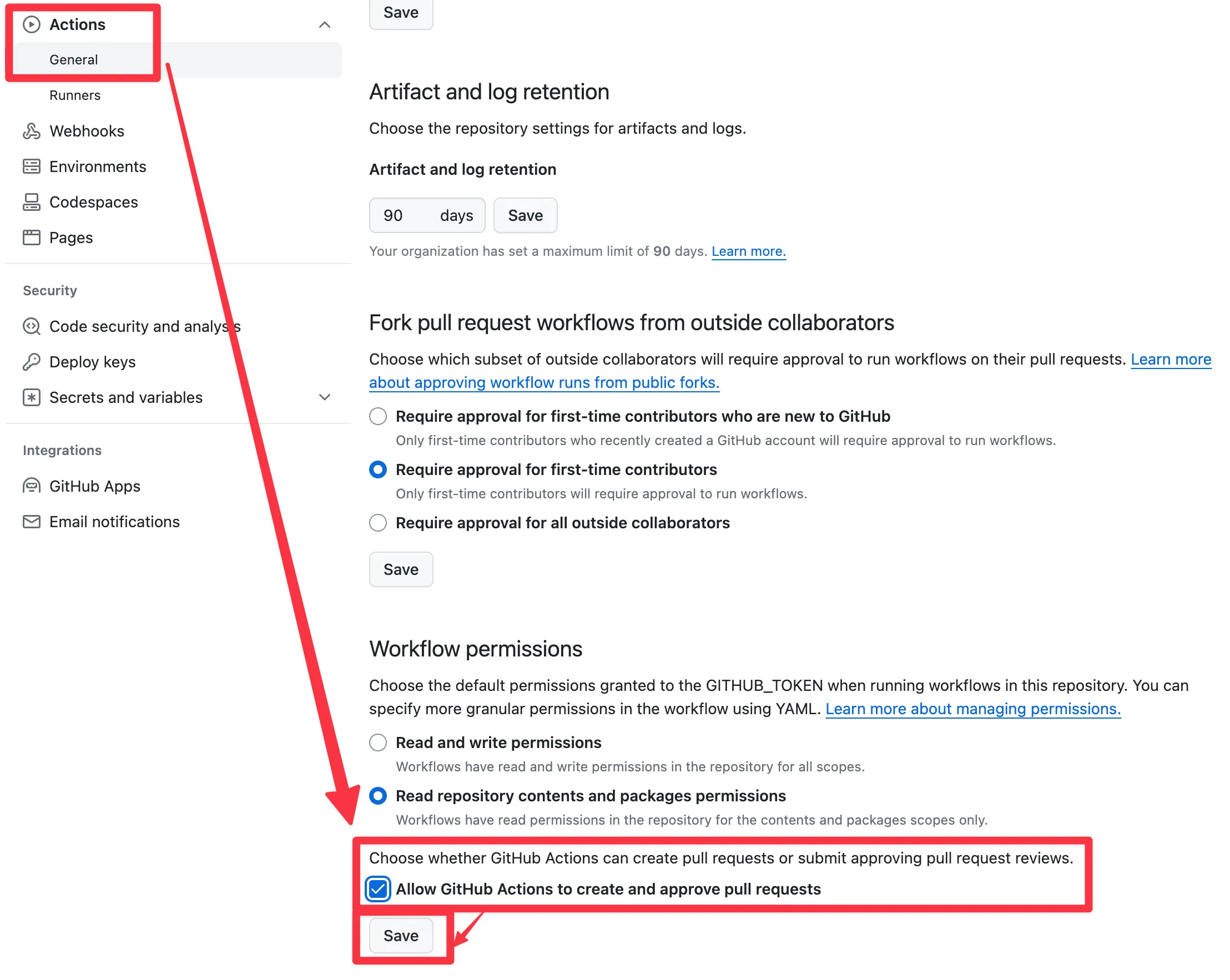
publications.bib. - In your GitHub repository, click the Settings tab at the top of the page, click Actions > General in the left menu, choose Allow and click Save
- Check that your repo has a file named
import-publicationsin the.github/workflows/folder. If it doesn’t, you can add the file from here. Skip this step for the latest Academic and Research Group templates as it is included. - At the root of your GitHub repository, click Upload Files and select your
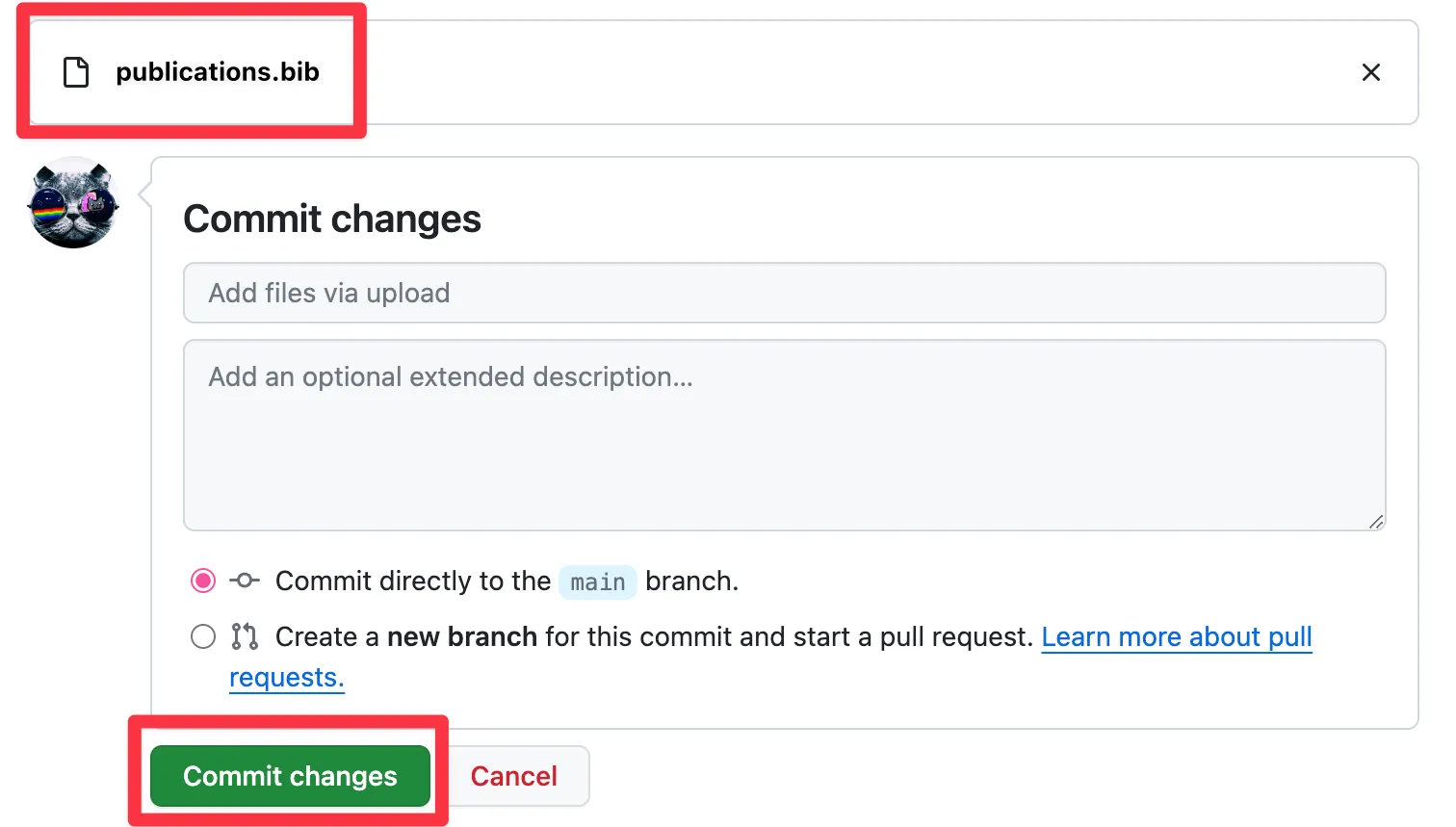
publications.bibfile to upload to GitHub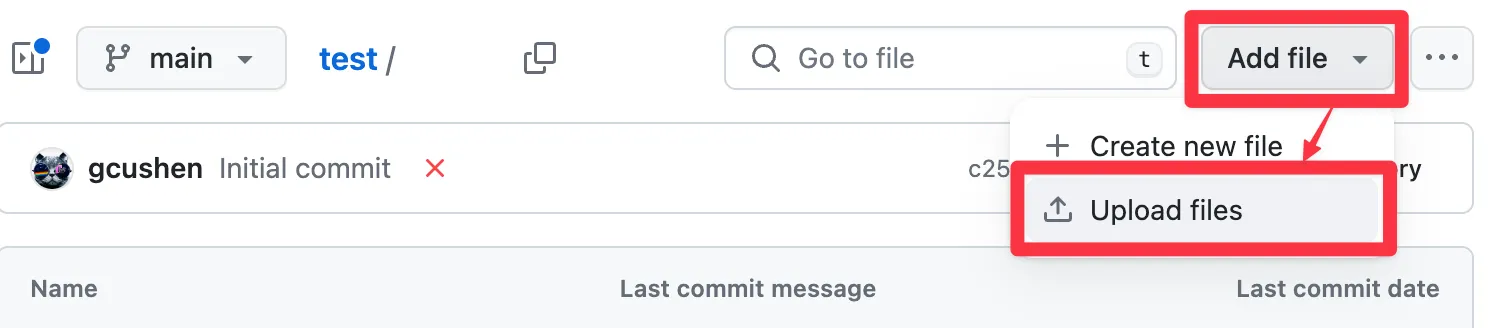
- Click Commit Changes to upload the file
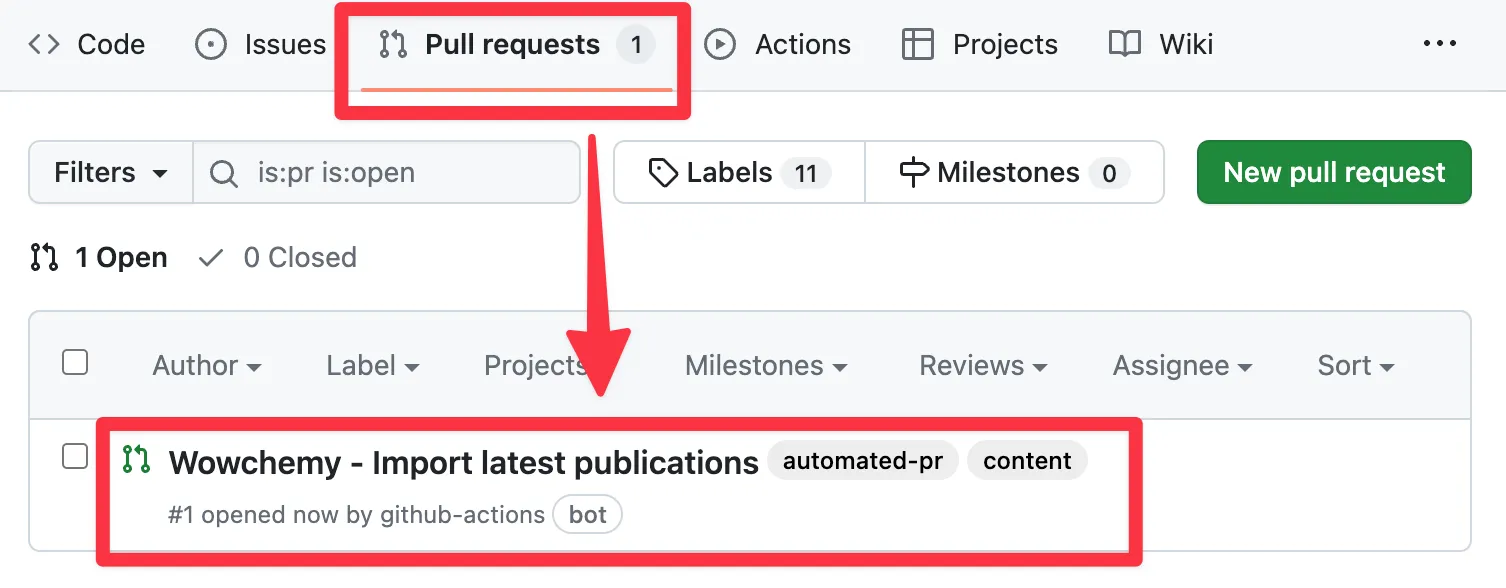
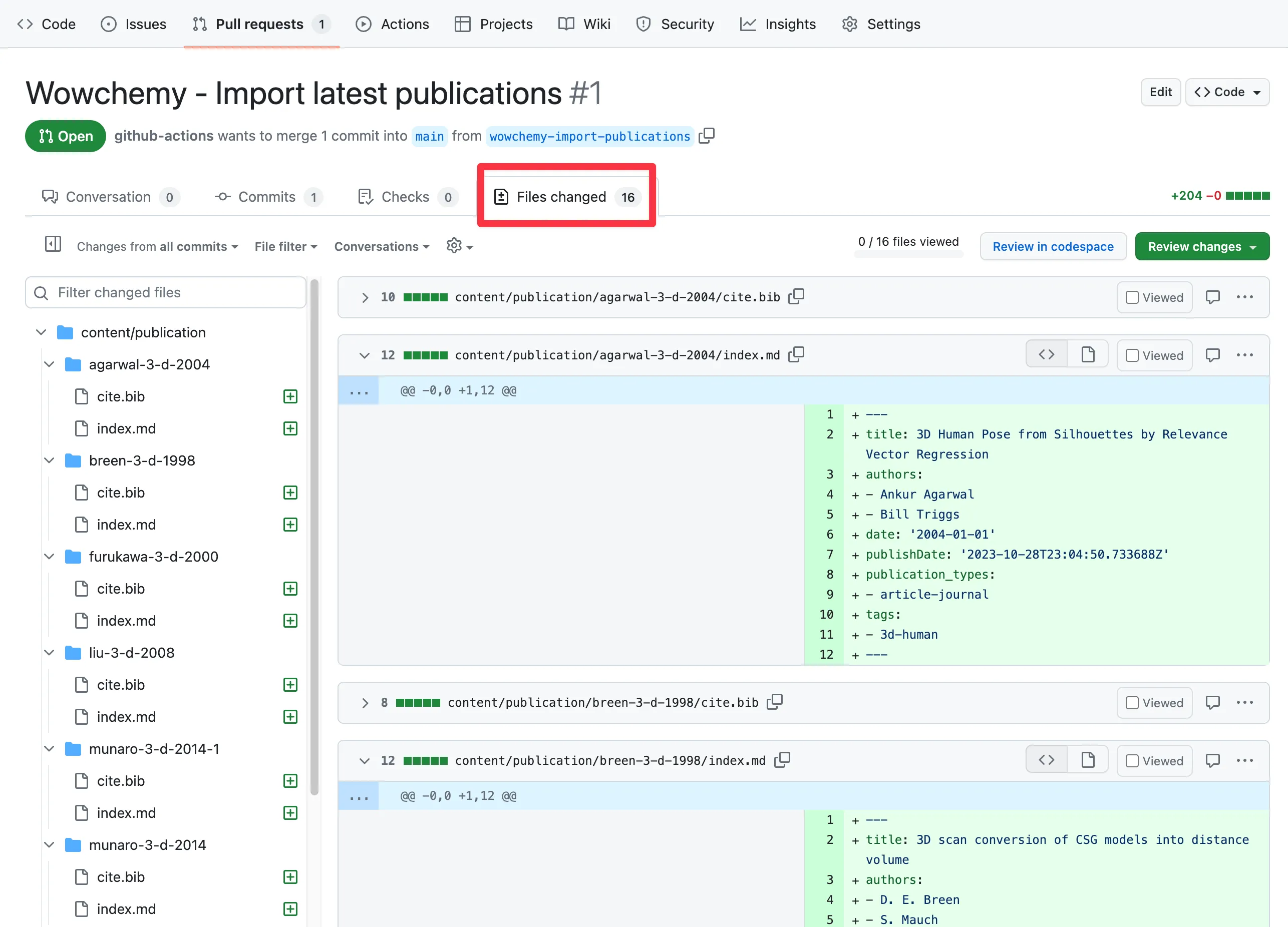
- GitHub will now import your publications from Bibtex. Within a minute or two, GitHub will create a Pull Request for you to review the changes:
- You can review the changes:
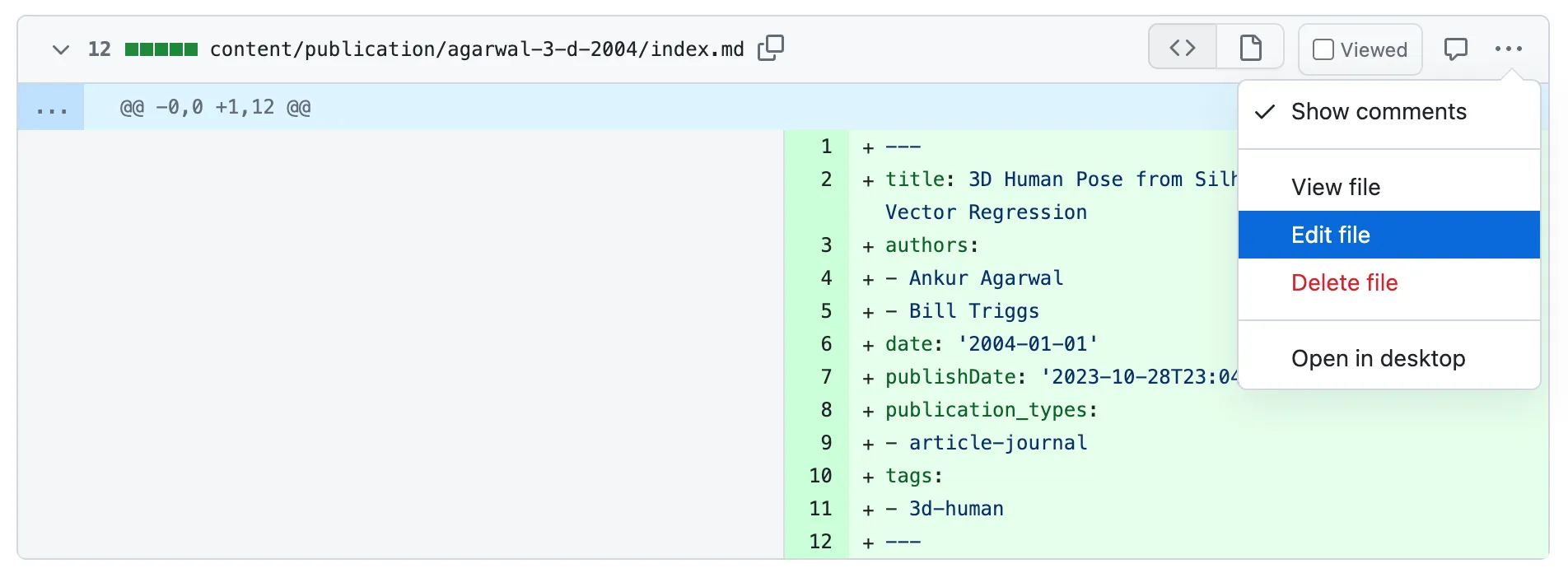
- If you want to add the full text or supplementary notes in the body of any of the pages, click Edit File, otherwise skip to the next step:
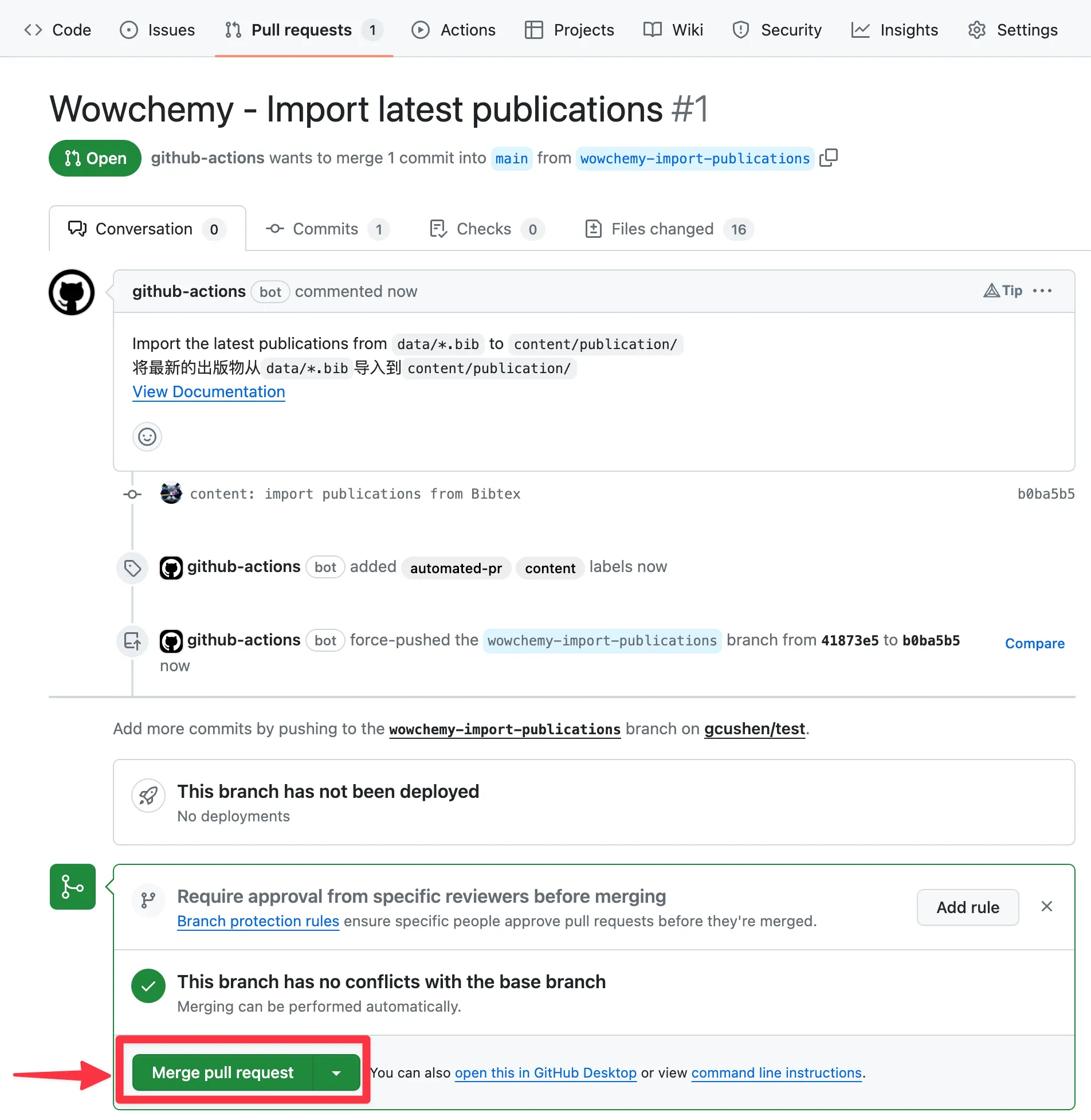
- Once you are happy with the changes, click Merge and then Confirm Merge:
In a few minutes, your website should automatically update to display the new publications.
Want to enrich your publications? There are many options to customize publication pages such as adding a cover image and PDF attachment. View the Publication Guide.